Lazy Loading Video and Audio: What It Means for LCP and PageSpeed
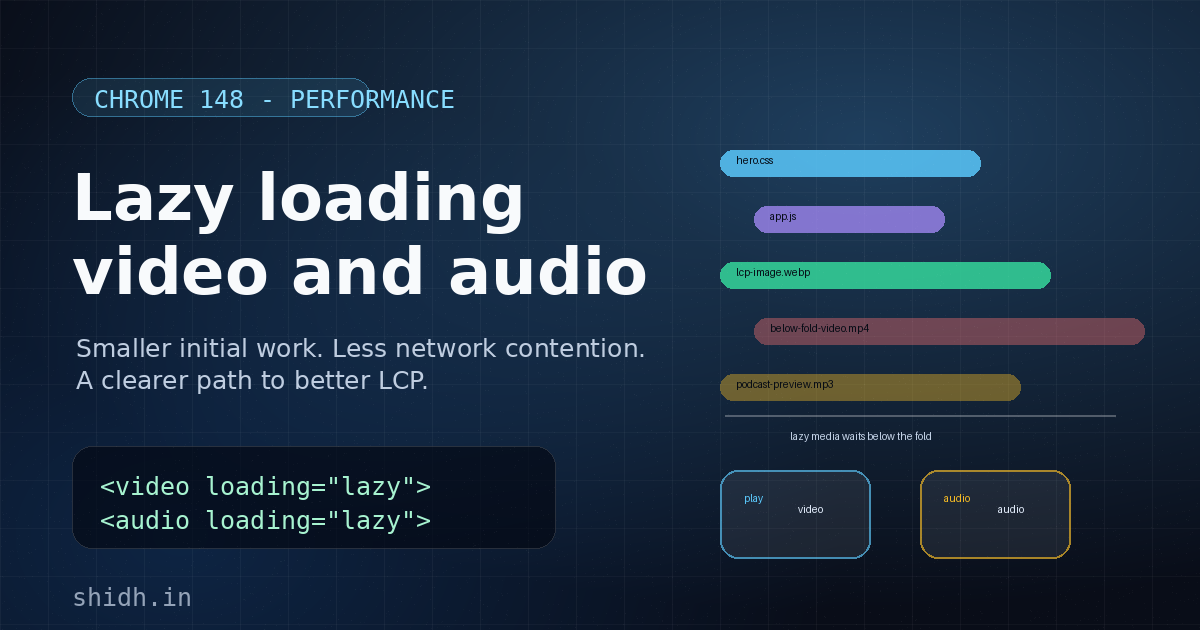
Chrome 148 adds support for loading="lazy" on <video> and <audio> elements. The small syntax change is easy to miss, but it fills a real gap in the browser’s lazy-loading story.
We already had native lazy loading for images and iframes. But media-heavy pages still needed custom JavaScript if we wanted below-the-fold video or audio to stay out of the initial load path.
Now the browser can do it declaratively:
<video loading="lazy" controls src="/product-demo.mp4"></video>
<audio loading="lazy" controls src="/podcast-preview.mp3"></audio>
I built a small demo for this here: lazy media loading demo.
Why this can matter for LCP
Largest Contentful Paint is usually won or lost by what happens during the first few seconds of a page load. The browser is trying to do many things at the same time:
- parse HTML
- discover resources
- download CSS, JS, fonts, images, and media
- decode assets
- run scripts
- layout and paint the page
If the most important above-the-fold content has to compete with a below-the-fold video, the user pays for something they cannot even see yet.
That is the important mental model here:
Lazy loading media does not make your hero element faster directly. It reduces the amount of unrelated work competing with the hero.
This can improve LCP when the page has non-critical media that would otherwise start fetching during initial load.
Common examples:
- landing pages with customer story videos below the fold
- ecommerce/product pages with product videos after the hero section
- article pages with embedded explainers lower in the content
- podcast/course pages with many audio previews
- documentation pages with multiple tutorial videos
In those cases, loading="lazy" helps the browser spend the initial network and CPU budget on the content the user actually sees first.
How media can hurt PageSpeed
Video and audio are not just “one more request”. They can affect performance in a few ways.
1. Network contention
Even if a browser does not download the entire video, it may still request metadata, byte ranges, posters, or enough data to initialize playback.
That can compete with:
- the LCP image
- render-blocking CSS
- critical JS
- web fonts
- API/data requests needed for the first view
On slower networks, this matters a lot. PageSpeed/Lighthouse throttling makes this more visible because the connection budget is intentionally constrained.
2. CPU and main-thread work
Media elements can trigger setup work: metadata parsing, layout updates, poster handling, control rendering, and sometimes decoding work depending on the resource and browser behavior.
Individually this may be small. But on a page with many clips, the overhead becomes noticeable.
3. Resource prioritization noise
Performance is partly about priorities. The browser is good at prioritizing, but it cannot know your product intent perfectly.
If a video is five screens down, there is no reason for it to enter the initial loading race. loading="lazy" is a hint that makes your intent explicit.
Before Chrome 148
Before this, we usually handled lazy media with JavaScript:
<video controls data-src="/demo.mp4"></video>

<script>
  const video = document.querySelector('video');

  const observer = new IntersectionObserver(([entry]) => {
    if (!entry.isIntersecting) return;

    video.src = video.dataset.src;
    observer.disconnect();
  });

  observer.observe(video);
</script>
This works, but it has tradeoffs:
- more JavaScript to write and maintain
- more edge cases around preload, posters, and controls
- easy to accidentally create layout shifts
- easy to forget accessibility or no-JS behavior
The native attribute is nicer because it keeps the behavior in HTML. It also lets the browser decide the right distance from the viewport, similar to image lazy loading.
The new approach
For a below-the-fold video:
<video
  loading="lazy"
  controls
  poster="/images/product-video-poster.jpg"
  src="/videos/product-demo.mp4"
></video>
For a below-the-fold audio preview:
<audio
  loading="lazy"
  controls
  src="/audio/episode-preview.mp3"
></audio>
That’s it.
The browser can delay loading the media resource until the element is near the viewport.
What I would still be careful about
I would not blindly add loading="lazy" to every media element.
Do not lazy-load above-the-fold media
If the video itself is the hero content, lazy loading can make the experience worse. The browser may delay the one thing the user came to see.
For above-the-fold media, be intentional. You might want eager loading, a good poster image, and carefully chosen preload behavior.
Use a poster for video
A video without a poster can create an ugly blank box or cause layout/visual issues. A poster also gives the user something meaningful before playback.
<video
  loading="lazy"
  poster="/images/intro-poster.jpg"
  controls
  src="/videos/intro.mp4"
></video>
Reserve space
Lazy loading should not cause layout shifts. Give media stable dimensions or an aspect-ratio container.
.video-frame {
  aspect-ratio: 16 / 9;
}

.video-frame video {
  width: 100%;
  height: 100%;
}
Measure instead of assuming
The win depends on the page. If the media was already not being fetched early, you may not see much difference. If the page had multiple offscreen videos/audio clips, the difference can be significant.
Use:
- DevTools Network panel
- Lighthouse/PageSpeed Insights
- WebPageTest
- real-user monitoring if available
Demo
I created a small demo page: Lazy loading video and audio demo.
How to test it:
- Open the demo in Chrome 148 or newer.
- Open DevTools → Network.
- Disable cache.
- Reload the page and do not scroll.
- Notice the eager video/audio requests near the top.
- Scroll down near the lazy section.
- The lazy video/audio requests should appear only when they are near the viewport.
The demo also logs media resource timing using PerformanceObserver, so it is easier to see when each media request starts.
Where this helps most
This is especially useful for pages with a lot of supporting media:
<section class="testimonials">
  <video loading="lazy" controls src="/videos/customer-1.mp4"></video>
  <video loading="lazy" controls src="/videos/customer-2.mp4"></video>
  <video loading="lazy" controls src="/videos/customer-3.mp4"></video>
</section>
Or audio-heavy pages:
<ol class="episode-list">
  <li><audio loading="lazy" controls src="/episodes/1-preview.mp3"></audio></li>
  <li><audio loading="lazy" controls src="/episodes/2-preview.mp3"></audio></li>
  <li><audio loading="lazy" controls src="/episodes/3-preview.mp3"></audio></li>
</ol>
For these pages, lazy loading is not just a micro-optimization. It changes the initial loading shape of the page.
The browser can prioritize what the user sees now, and delay what the user may or may not reach later.
How I think about it
Performance work is often framed as making things faster. But many good web performance improvements are actually about making the browser do less at the wrong time.
Lazy-loading video and audio is exactly that kind of feature.
The media is still there. The functionality is still there. But it stops stealing attention from the initial experience.
That is a good default for the web: load the first screen with care, then progressively earn the rest of the work as the user moves through the page.